There are certain situations when you can’t “unhide” columns on the left and/or rows at the top and it is not a sheet protection issue.
It is also not an unhiding issue. It is caused by Freeze Panes. It depends where you are when you set your Freeze Panes.
Freeze Pane is in the View ribbon.
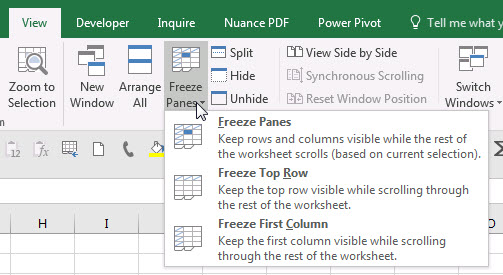
Freeze Panes keeps certain rows at the top and columns to the left as you scroll around. But it can also stop you from seeing certain rows and columns.
If you have scrolled to the right and then set your Freeze Panes then it can stop you seeing the columns on the left.
If you have scrolled down the sheet and then set your Freeze Panes it can stop you seeing the rows at the top.
The easy solution if you want to see or unhide the rows or columns is to remove the Freeze Panes. The easy way to do that is to press in sequence
Alt w f f

This is a toggle command so you can also use it to apply Freeze Panes.
Thanks a lot for posting this. Just the first line of article helped to unhide columns in a secons, for which I was going mad from last 2 hours wondering why unhide option was not working in my excel.
Yes it is a frustrating issue – glad it helped.
Fantastic! this was my issue, and I never thought it was a freeze pane issue.
Thank you.
Happy to help.
Unfortunately Freeze Panes was already unfrozen as part of my troubleshooting 🙁
Hello again. I found a solution that worked for me from a 2012 post:
“If you already tried unhiding columns, try below one:-
Select all columns (Ctrl + A) and do the column width to 10 point…”
https://a4accounting.com.au/unable-to-unhide-columns-or-rows-in-excel/
I never would have thought!
Hi Graeme
Thanks for sharing. Yes, there is a hack way to hide rows and columns using a 0 for row height or column width. That’s what your technique fixes.
Regards
Neale
thank you so much! this has worked for me.
I have 530 rows hidden and I don’t want to sit and double click 530 times to unhide ALL of them. Is there no a000 t a way to unhide a rediculous number of hidden rows all at once?
Press Ctrl + A to select the whole sheet – then press in sequence Alt H O U O don’t hold the keys down.
Adjusting the column width to 10 worked for me two. Thanks to everyone.
Hello,
Just created the account to say — Thank you so much
Happy to help.
I’ve tried everything I possibly could to no success however your Tip on Freeze / Unfreeze Panes proved just what I was looking for, thank you!
It is not intuitive – glad you sorted it out.
Thanks a lot for this article. Extremely helpful or I would’ve been going for one hour trying to solve this problem.
Happy it helped.
Thanks so much. So lame of all the other sites not to mention the possibility. I’ll have to remember your site
Glad it helped.
This totally answered my question. Thank you so much for sharing. I overlooked the panes
Yes the panes are a pain in this case.
Thank you for this minor, but significant point about unfreezing panes. Do you think Microsoft could include this in their instructions? (sarcasm) Again, thanks a million!
Like other users, been dealing with this for more than an hour until I came across your info.
Hi Donna
Yes it would be an easy add to the unhide instructions “if all else fails remove freeze panes”.
Glad you resolved it eventually.
Regards
Neale
Hi,
No success after trying the methods above.
columns from A to L are still hidden?
Have sent you an email with the following suggestion.
Have you tried selecting the columns and changing the column width to 8? You can right click the columns after selecting them to access column width.
Hi,
Use the following if above methods didn’t work:
When the Go To window appears, enter A1 in the Reference field and click on the OK button.
Best,
A
Glad you got it sorted.
What if none of the methods work? I’ve unfrozen everything. I try to unhide, it doesn’t do it 🙁
Hi Ashlye
Try this
Click the icon where the rows and columns meet top left corner. This selects the whole sheet.
On the Home ribbon click the Format icon drop down (far right side)
Select Hide & Unhide
Choose Unhide rows or Unhide columns.
Any luck?
Regards
Neale
Worked like a charm when any other methods above didn’t work for my case. Thanks so much for sharing!
Glad it helped.
Hi Ashlye
Another way to try is to change the row height or column width – if you set the column width to 1 it looks hidden but actually isn’t. Same with row height.
Regards
Neale
This is helpful, never though that my issue is a freeze pane.
For anyone who has tried it all and nothing worked, try select all, then double click on the area where the rows are numbered/hidden cells indicated. It should unhide all
Thanks Arielle
Press Ctrl + A until the whole sheet is selected. Then double click any line (need the double headed arrow icon) between the row numbers (left hand side) or column letters (above the grid) to unhide any hidden rows or columns.
Thank you so much for your response. All other suggestions did not work but your did. Extremely frustrating issue to have when dealing with large amounts of data.
You are welcome.
Thank you so much! I was going mad trying to figure out why I couldn’t see my top rows!
We thank you, thank you, thank you!
Thank you. although mine wasnt a freeze pane issue it pointed me in the right direction. i realised i had a filter on and the cells that contained the ‘to be filtered from’ cells were also mysteriously in the hidden rows so i just removed the filter and hey presto i could then unhide cells.
many thanks
I was facing the same issue and now it is resolved. Thanks a lot for the suggestion.
Happy it helped.
Thank you for sharing this answer
I have had this happen many times. When the proposed approaches mentioned previously did not work it was because I had a filter in place so when i cleared that filter, i was able to unhide the hidden rows.
Hi Jonathon
When a filter is in place the row numbers turn blue, making it easier to spot a filter.
Alt A C pressed in sequence clears filters.
Regards
Neale
Thanks you!!!
Thanks Neale, life saving tip.
Happy to help.