I had a recent query regarding checking time in a column that had both date and time. There is an easy way to extract time from a date-time combination.
In Excel dates are whole numbers and time is a fraction. So 6am is 0.25, noon is 0.5 and 6pm is 0.75.
To extract a fraction from a number the easiest formula is the MOD function.
If A1 had the number, we can use
=MOD(A1,1)
To extract the fraction.
The MOD function returns the remainder after dividing by a number, in our case 1. This means it returns the fraction.
The table below has a list of date-time entries.
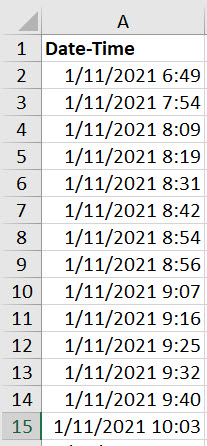
We can extract the time using
=MOD(A2,1)
In cell B2 and copy it down.
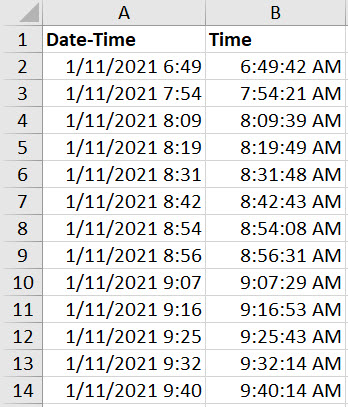
You will need to apply a time format to see the result.
Time query
The query was to identify times around work hours. Between 9 and 5 was work and outside was deemed home.
The formula in cell C2 in the image below is
=IF(AND(MOD(A2,1)>=$F$1,MOD(A2,1)<=$I$1),"Work","Home")
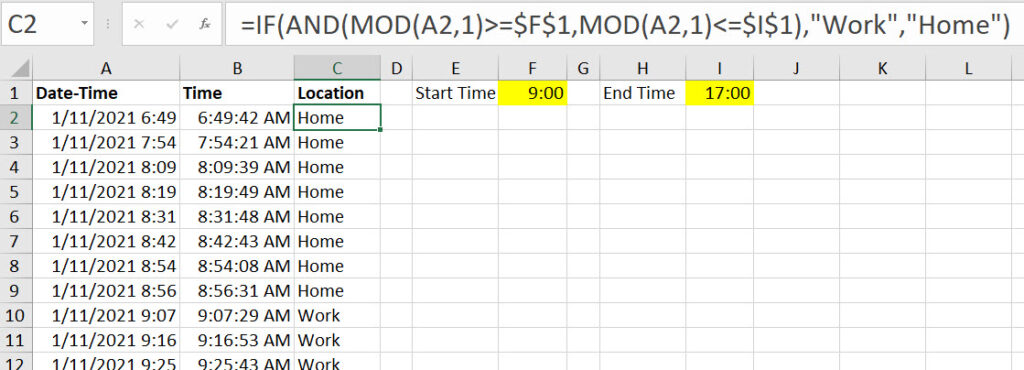
Between rows 9 and 10 you can see the change.
Cells F1 and I1 are entered as times.
To enter a time, use the colon after the number. Entering 9: will enter 9am and 17: enters 5 pm.
I thought you and your readers might find this alternate, not-too-obvious formula (which uses only two function calls instead of four) for cell C2 copied down to be of interest.
=IF(MEDIAN(B2,F$1,I$1)=B2,”Work”,”Home”)
Whoops! I referenced the wrong column. The formula (three function calls instead of four) should have been…
=IF(MEDIAN(MOD(A2,1),F$1,I$1)=B2,”Work”,”Home”)
Thanks for sharing Rick – yes MEDIAN is not an intuitive solution.